
Overview
This knowledge article explains how to collect the debug logs and additional diagnostic information required by the Support Team to troubleshoot issues encountered while operating Hardware Sentry KM in BMC Helix Operations Management.
Enabling Debug Logging
To investigate an issue, the Support Team needs logs covering Hardware Sentry KM discovery and collection activities. Two methods are available:
- Without restarting the PATROL Agent: Enable debug logging for 70 minutes to capture the next scheduled discovery, which runs every 60 minutes by default.
- With a PATROL Agent restart: Enable debug logging for a shorter period, such as 20 minutes, then immediately restart the PATROL Agent to trigger discovery. Use this method when logs are needed sooner and a restart is permitted.
Why 70 minutes?
Hardware Sentry KM performs discovery every 60 minutes by default. Since the next discovery can start at any point during that interval, a 70-minute logging period provides an additional 10-minute margin to capture discovery and collection activities.
If the discovery interval has been changed or discovery takes longer to complete, adjust the logging duration accordingly.
Without restarting the PATROL Agent
- In BMC Helix Operations Management, go to Configuration > Agents.
- Locate the connected PATROL Agent running Hardware Sentry KM with the appropriate monitoring policy applied.
- Click the action menu and select Query PATROL Agent.
- Enter the PATROL Agent username and password, then click Connect.
- In the Command box, enter the following PSL command and click Execute:
requires MS_HW_q; setDebug(1, 70);

- Wait for the full 70-minute logging period to expire.
Debug logging stops automatically when the configured duration expires. By default, the log files are then compressed into a single archive.
In our example below, the MS_HW_6-Green-Yellow_debug_vit-monitor_3181.tar.gz is generated after 70 minutes at 05:32:

With a PATROL Agent restart
Use this method when you need to collect logs sooner and can restart the PATROL Agent.
Restarting the PATROL Agent temporarily interrupts monitoring by all KMs running on that agent.
- In BMC Helix Operations Management, go to Configuration > Agents.
- Locate the connected PATROL Agent running Hardware Sentry KM with the appropriate monitoring policy applied.
- Open the PATROL Agent’s action menu and select Query PATROL Agent.
- Enter the PATROL Agent username and password, then click Connect.
- Execute the following PSL command to enable debug logging for 20 minutes:
requires MS_HW_q; setDebug(1, 20);
- Immediately execute the following command to restart the PATROL Agent:
print(system("pconfig +RESTART -port ".get("/tcpPort")));
The restart triggers a new Hardware Sentry KM discovery cycle, allowing discovery and subsequent collection activities to be captured during the shorter logging period.
- Wait for the configured 20-minute logging period to expire.
Debug logging stops automatically when the configured duration expires. By default, the log files are then compressed into a single archive.

Collecting Additional Information
In addition to the debug logs, collect the PATROL Agent configuration and process information described below.
Run these commands through Query PATROL Agent on the same agent used to collect the debug logs. If you restarted the agent, reconnect to it first.
PATROL Agent Configuration
Execute the following PSL script:
print(system("pconfig +get -port ".get("/tcpPort")));
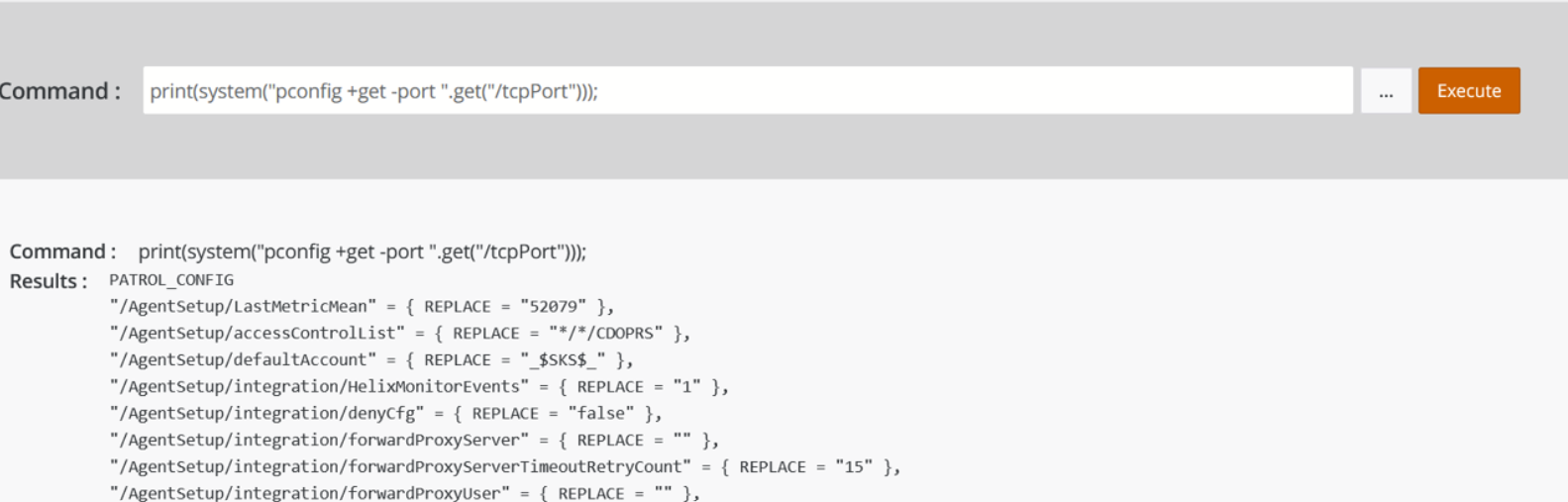
Copy the complete output into a text file named pconfig.txt and save it on your computer.
Collector and Java Process Information
Execute the following PSL script:
 os = get("/appType");

if (os == "NT") {
    print(system("powershell.exe -NoProfile -ExecutionPolicy Bypass -Command \"Get-WmiObject Win32_Process | Where-Object {($_.Name -like 'matsya*' -or $_.Name -like 'java*')} | Select-Object ProcessId,Name,CommandLine,WorkingSetSize,PeakWorkingSetSize,CreationDate | Format-List\""));
}

if (os == "Linux") {
    print(system("ps -ef | grep -Ei '[m]atsya|[j]ava'"));
    print(system("ps -ef | grep '[P]atrolAgent'"));
}
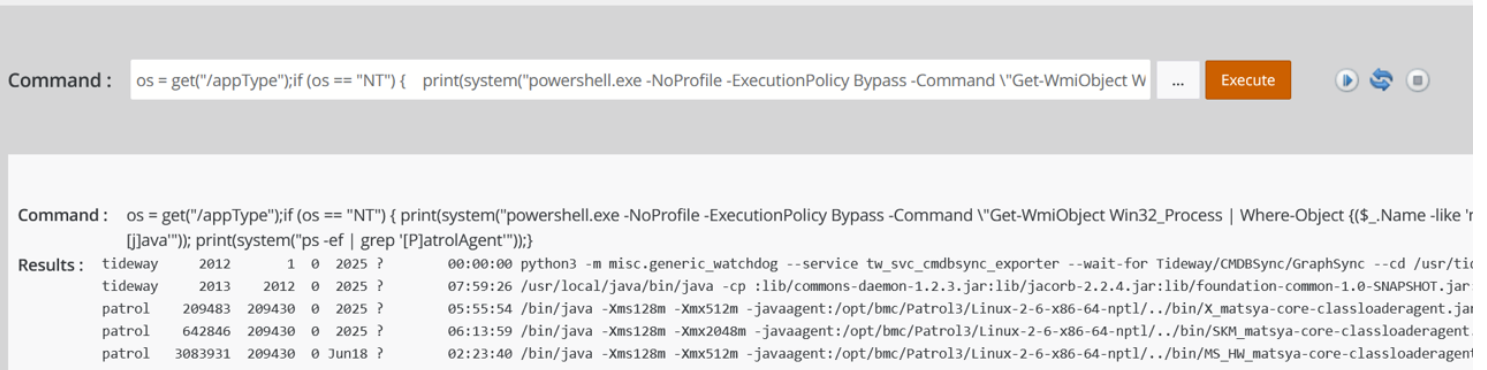
Copy the complete output into a text file named processes.txt and save it on your computer.
This information helps the Support Team identify the running Hardware Sentry KM processes and examine their command-line arguments. On Windows, it also includes memory usage information.
Providing the Collected Information to the Support Team
Once the debug logging period has expired, retrieve the generated archive from the PATROL Agent host.
| Operating system | Default directory | Archive filename |
|---|---|---|
| Windows | %PATROL_HOME%\log |
MS_HW_<session>_debug_<hostname>_<port>.zip |
| Linux | $PATROL_HOME/log |
MS_HW_<session>_debug_<hostname>_<port>.tar.gz |
Select the archive corresponding to the debug session you just completed. For example:
MS_HW_6-Green-Yellow_debug_vit-monitor_3181.tar.gz
Attach the following files to the corresponding BMC Helix Support case:
- The debug archive retrieved from the PATROL Agent host.
- pconfig.txt, saved on your computer from the configuration command output.
- processes.txt, saved on your computer from the process script output.
Related Topics
- How to Monitor NetApp E-Series Storage Systems with Storage Analyzer KM
- How to Monitor NetApp FAS/AFF Filers with Storage Analyzer KM
- More Easily Identify Your Devices Monitored Through a Proxy in TrueSight / Helix Operations Management
- Enabling Debug for Sentry's KMs in the TrueSight/BPPM and PATROL Classic Consoles
- Enabling Debug from the Command-line Interface